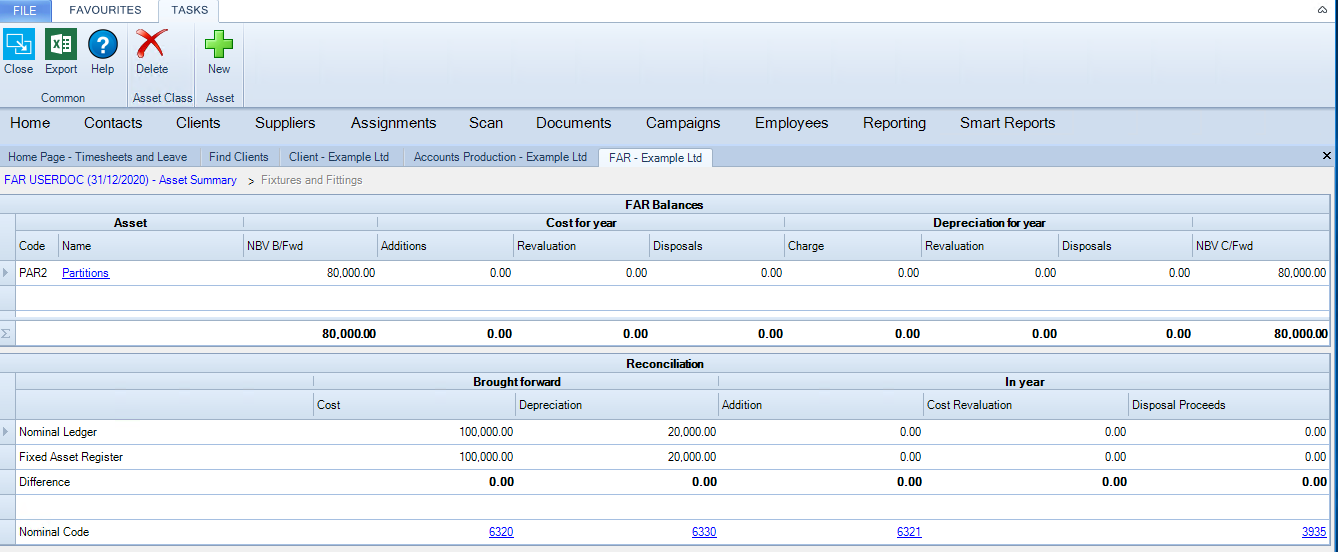
The Asset Class screen lists the assets that make up the Asset Class and a shows a Reconciliation with the nominal ledger balances. The screen has two sections.
clipboard_ef69a0070544d4b5807cae347fd82b046.png

The FAR Balances section occupies the top half of the screen and lists the assets in the Asset Class. 

Code and Name display the code and description of the Asset, e.g. FF00001 Boardroom chairs. Click on the Asset  to see more detail.

The remaining columns show the balances similar to those for the Asset Summary.

Reconciliation

The purpose of the Reconciliation is to show whether the nominal account balances agree with the balances on the Fixed Asset Register.

 There are two main reasons why these accounts might not reconcile:

  1. If you choose not to analyse a CCH Accounts Production entry in the FAR immediately.
  2. If you go into the Fixed Asset Register directly and post a FAR entry with no matching entry on the nominal ledger.

It is also possible that other nominal accounts will not match the Fixed Asset Register, e.g. the Depreciation Charge P&L account, but the Reconciliation does not check these. See FAQ.

Nominal Ledger This is the balance on the nominal account, except for the last column, Disposal Proceeds. The Nominal Ledger figure for Disposal Proceeds shows the total of the amounts posted manually to the P/L on Disposal account - these are assumed to be the Disposal Proceeds. Amounts posted by the Fixed Asset Register automatically are excluded, i.e. the cost and depreciation eliminated on disposal.

Fixed Asset Register These are the FAR balances corresponding to these five accounts. The Additions balance includes both Additions and Adjustment Movements posted during the year. Usually the Fixed Asset Register balances on this row agree with those shown above in the FAR Balances section of the screen. But if two or more Asset Classes share the same nominal account, e.g. for the P/L on Disposal, then the Reconciliation shows the total balance for all the Asset Classes that use it, not just for the one Asset Class shown in the FAR Balances section.

Difference shows the unreconciled amount. Once all differences are zero then Agrees with AP is Yes on the Asset Summary screen.

Nominal Code is the nominal code for the balance shown. You can drill into the nominal code to see the underlying nominal ledger entries.

Ribbon

Export Export the Asset Class to Excel, from where it can be printed if required.

Delete Asset Class An Asset Class can only be deleted if it contains no assets.

New Asset Creates a new asset.

Related documents

Asset Summary
The document provides an overview of the Fixed Asset Register (FAR) in CCH Accounts Production, detailing the Asset Summary screen that displays client Asset Classes and their yearly balances. It explains key columns, including Asset Class codes, Balance Sheet categories, and alignment with nominal accounts. Additionally, it outlines various ribbon options for functions such as exporting data to Excel, setting up Asset Classes, posting depreciation, generating FAR reports, and importing asset balances from Excel or legacy systems. The content serves as a guide for users to navigate and utilize the Fixed Asset Register effectively.
Asset Details
The document outlines the functionalities of the Asset screen within a financial software application. Users can create or access asset details, view asset attributes like Asset Code, Asset Name, and Depreciation Start Date, and manage changes subject to finalization constraints. It is emphasized that depreciation methods and residual values are defaulted but may be overridden. The History section tracks asset movements, and users have options to export data to Excel or delete assets without movements. Important restrictions regarding changes affecting finalized periods and depreciation methods are also highlighted.
Asset Classes
The Asset class section is used to define the ledger accounts which must be used for the posting of the asset transactions and the method of depreciation.
Import
The document outlines the process for importing Fixed Asset Register data via the Import screen in a specified software. Users can access this feature through the File menu and can import data for existing or new clients. If the client already exists, only their Fixed Asset data will be updated. Users can browse to select the import file, review clients listed, and choose which to import. Errors are reported during the process, and users finalize the import by clicking "Finish."
Export
The document outlines the process for exporting Fixed Asset Register data using the software interface. Users can access the Export screen via the File menu, where they can filter clients by Code or Name, and sort data. After selecting clients for export, users specify a destination and file name for the .far file. The final steps include confirming the export, resulting in a file that can be imported into another Central database. The export procedure is straightforward, requiring users to click through a series of prompts to complete the task.