
How To
Autoload screen
CCH Trust Accounts
Nominal Client Details > Autoload. This is used for setting up TB Loading Instructions and for selecting them.
Select Nominal Client Details > Autoload. The following screen is displayed:
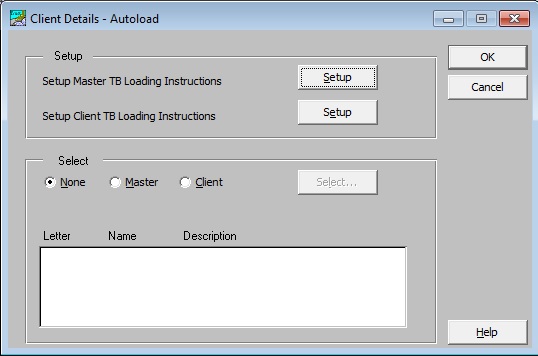
The screen has two parts. The top part is for setting up TB Loading Instructions and the second part for selecting them:
- Setup Master TB Loading Instructions sets up TB Loading Instructions that can be used on multiple clients.
- Setup Client TB Loading Instructions sets up TB Loading Instructions that can only be used on the current client.
- Select selects either a set of master or client TB Loading Instructions to be used on the current client.
Notes:
- Multiple sets of Client (or Master) TB Loading Instructions can be set up, but only one set can be selected for use on a client at a time.
- It is important to remember to Select the TB Loading Instructions. If TB Loading Instructions are set up, but not selected, the trial balances are not passed to the accounts formatter.
Related documents
Linking to clients in CCH Central
This document provides instructions on how to link and unlink clients from CCH Central in the CCH Trust Accounts system. To link a client, the user must select the client, click "Edit," then "Link," and choose the appropriate client from Central. Once linked, certain fields become non-editable in Trust Accounts. To unlink a client, the user clicks the "Unlink" button, which restores editability but deletes any accounting periods in Central. Key fields updated from Central include client name, address, and contact details.
Database Parameters
Various features in Trust Accounts are optional. To set up many of these, from the Activities menu select System Management, and then Database Parameters.
Data Parameters
Various features in Trust Accounts are optional. To set up many of these, from the Activities menu select System Management, and then Database Parameters.
Database Parameters
Database Parameters
Passwords
Passwords