Chart of accounts
The chart of accounts for the entity is displayed on this screen.
Screen display options
The chart may be displayed in its entirety by clicking on All nominals or filtered to Profit and loss nominals only or Balance sheets nominals only.

Search box and filter
The Search box allows you to search by nominal code or description. Clicking on the filter icon beside the search box displays sliders allowing you to filter on custom nominals and / or active nominals.

Editing nominal code details
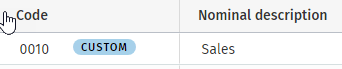
To change a nominal code description, click into the box and type over the existing description e.g. changing "Sales of goods" to "Sales". The word custom beside the code indicates that the description for that code has been changed.
Close off accounts
These are displayed to show where the nominal will be closed off to when the year-end function is performed. It is NOT recommended that you change these.
Type
The category types are displayed so that you can see where the codes will appear in the financial statements. It is NOT recommended that you change these.
If changing a description of a nominal code, DO NOT change the use or category of the code. If using CCH tax products the codes are aligned to those products.
To revert to the original description
Click on the circular arrow in the final column, this will open a dialog box asking for confirmation to proceed or allowing you to cancel.

Whilst it is possible to change a code to a different category or to change the close off account of a code - it is NOT recommended. For example, you would not wish to change the close off account of P&L codes from 9900 - Profits close off account.
Rounding accounts
Sole trader / partnership:
Limited company:
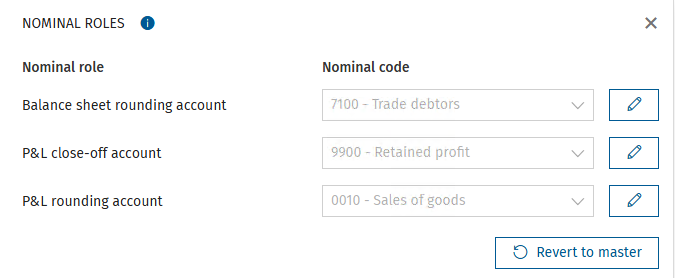
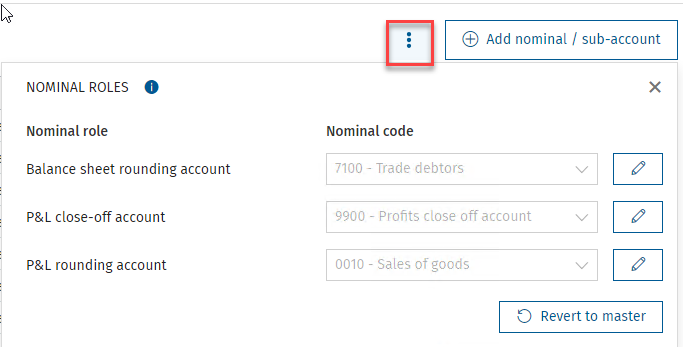
To display the Nominal roles, click on the 3 vertical dots, indicated above. The nominal code for the Balance sheet rounding account, and P&L rounding account may be changed by clicking the pencil on the row and choosing the required nominal code from the drop-down list, click on the disc icon to save, the word custom will then appear beside the nominal role description.
It is NOT recommended that the P&L close-off account is altered from the default.
If required, the nominal codes can be reverted to the master by clicking on the box shown above Revert to master.
Add nominal / sub-account
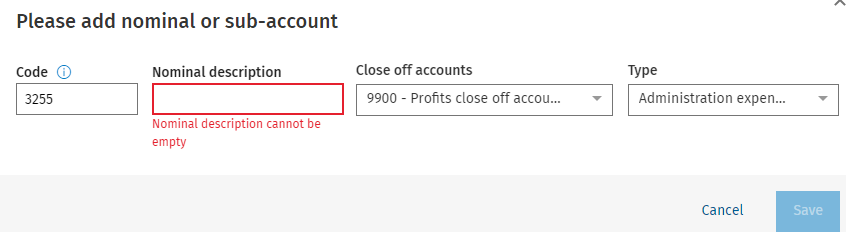
To add a new nominal code or a sub-account, click on the box Add nominal / sub-account, this opens a window to enable you to enter the details required. A main code is four digits, a sub-account has a further two digits. No code may be longer than 6 digits in total for a sole trader, partnership and limited company.
Depending on the type of code the software will know the close off account to use and the type of category it belongs to, see the example below. The description box cannot be left blank. Click Save or Cancel to complete or cancel the entry.