Creating a Tax Return
The process of creating a tax return starts in CCH Central.
NOTE: All employees require permssion to access to CCH iFirm Personal Tax in Central and must be activated for the CCH iFirm Personal Tax product in iFirm Organisation Management.
Important:
- Ensure that the 'CCH iFirm Console' service is running before migrating data to CCH iFirm. The CCH iFirm console allows firms to authenticate and monitor the syncing of edited Contact and Client records from CCH Central to CCH iFirm.
- A prompt may appear if the .NET runtime is not installed on this workstation
CCH Central
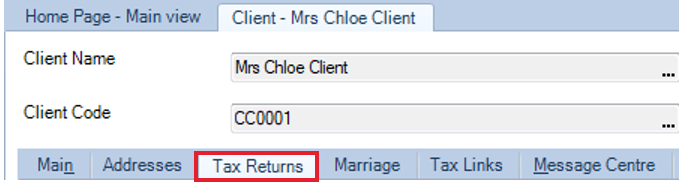
Find and open the client you would like to create a tax return for in CCH Central.
- Click on the Tax Returns sub-tab within the clients record.
- Click Create in the ribbon or Click here to create a new tax return on the screen to create the return.
Create a new tax return
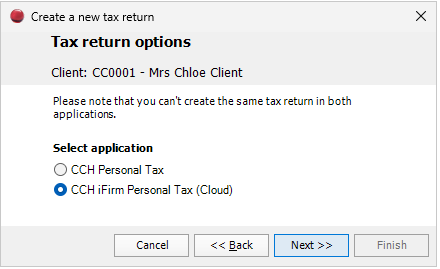
The Create a new tax return box will open.
- The first screen allows you to select the tax year and click Next.
- Select the CCH iFirm Personal Tax (Cloud) application and click Next.
WARNING: You cannot create the same tax return in both CCH Personal Tax and CCH iFirm Personal Tax.
- If you wish to add a workflow select Central workflow and click Next then select the workflow name.
- If you do not wish to add a workflow click None and click Next.
NOTE: Automated steps in your selected workflow may not work as expected with iFirm Personal Tax.
- Confirm you would like to create a new tax return in CCH iFirm Personal Tax by clicking Finish.
Logging into CCH iFirm
NOTE: To access CCH iFirm, you must have a CCH Central login (with a valid email address) in both CCH Central and CCH iFirm set up by your Wolters Kluwer account administrator.
Click here to learn how to invite members to join CCH iFirm.
-
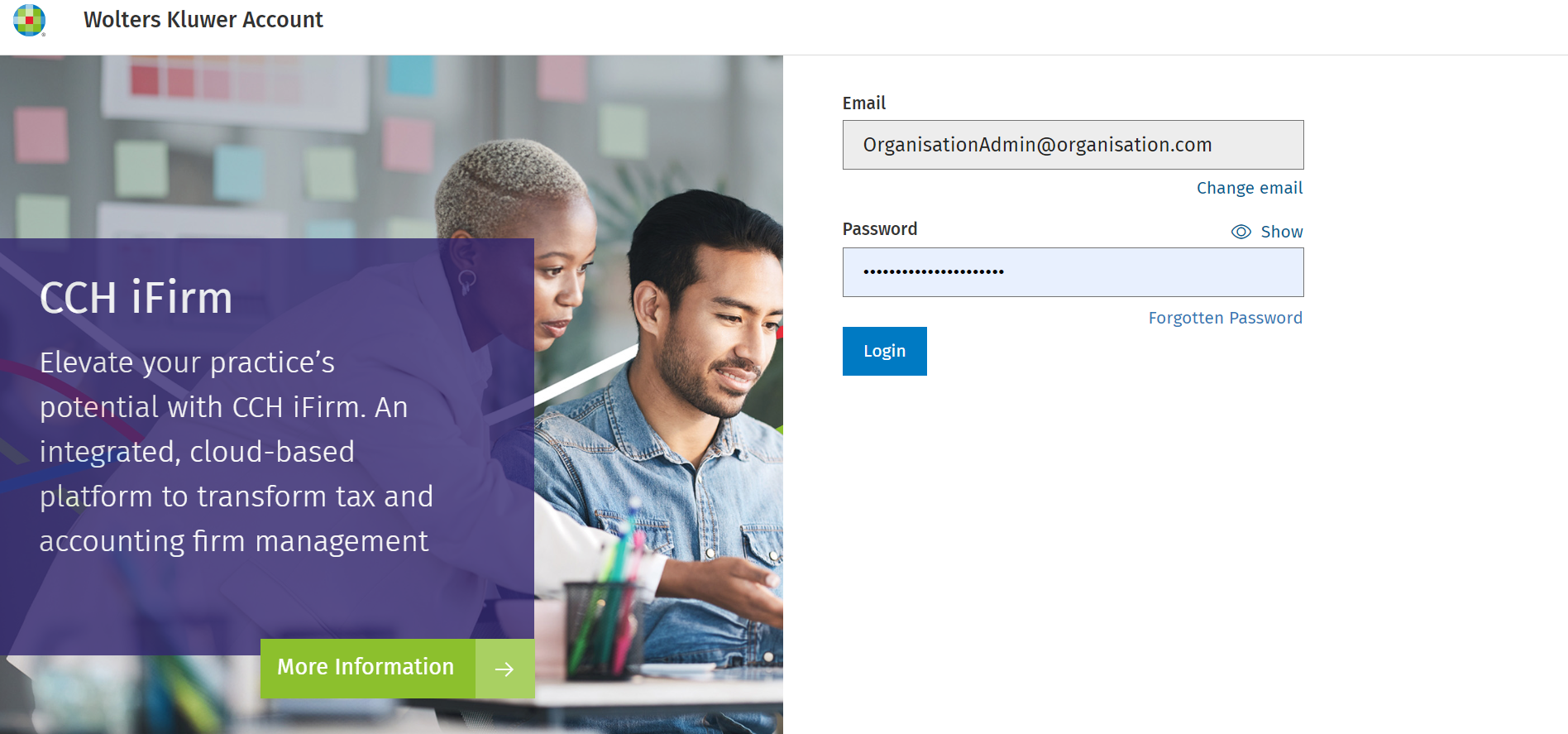
Your browser will open a new tab, asking you to log in.
-
Log in with your with your Wolters Kluwer account details.
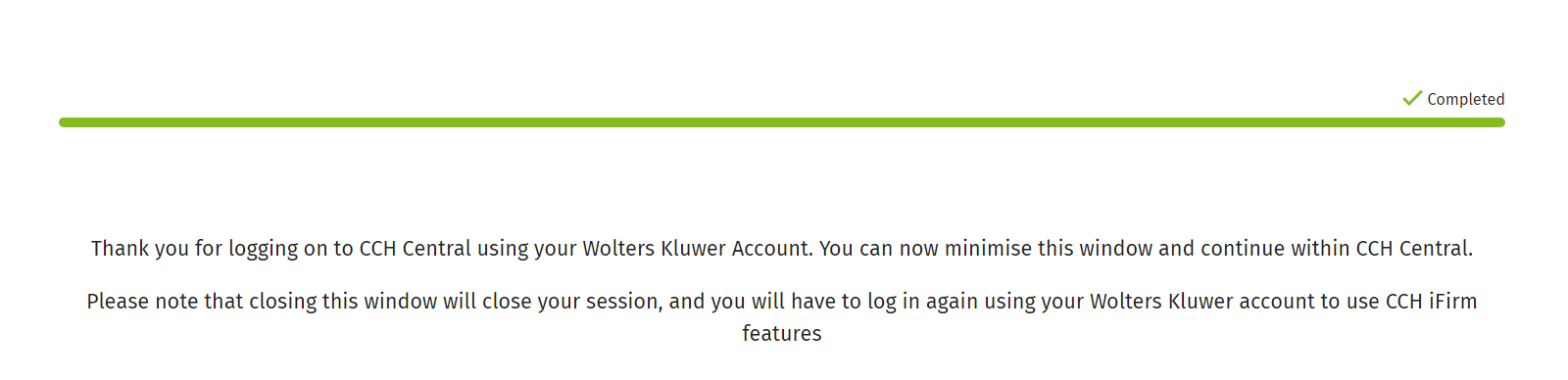
- Once you have successfully logged in your browser page will display as below - do not close this tab as it keeps your session open.
General client details
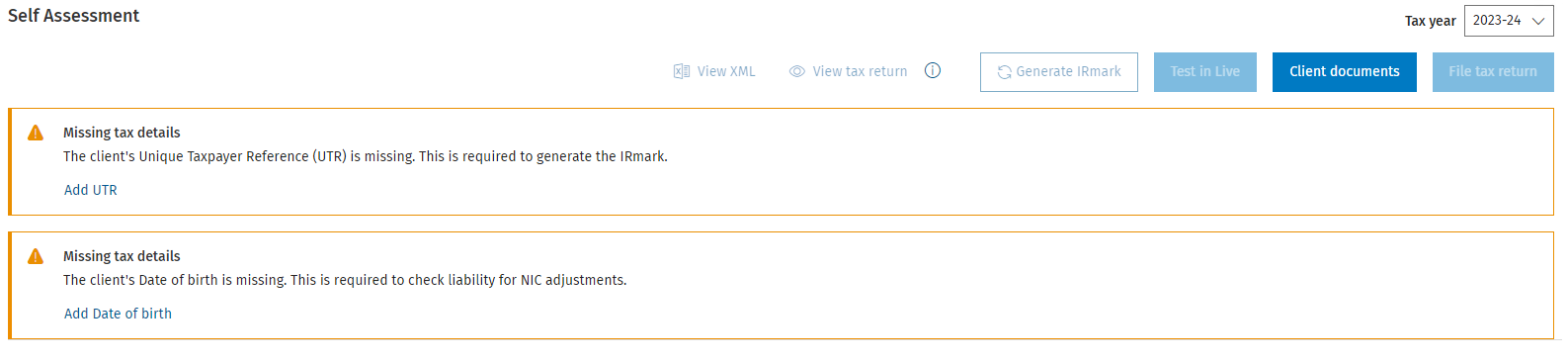
A new tab will open showing the Self Assessment page.
- Missing tax details are shown in orange boxes.
- Click on the hyperlinks in each box to add the missing details.
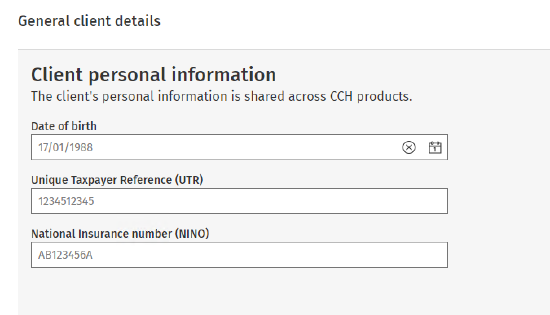
- Add the missing information and click Save changes.
You are now ready to add data sources.
Accessing Tax returns
CCH Central
You can open already created CCH iFirm Personal Tax returns from CCH Central and from CCH iFirm Personal Tax.
- In Central, navigate to the Tax Returns sub-tab within the client.
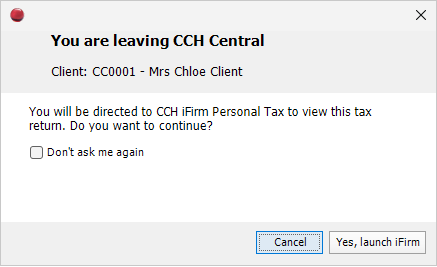
- Click on the tax return you would like to open and confirm you would like to continue to view the return in CCH iFirm by clicking Yes, launch iFirm.
- The return will open in CCH iFirm Personal Tax (if you are not already logged in - you may need to log into iFirm before the return can be opened).
You can also open a clients tax return by navigating to Tasksin the main menu within the client's record.
- Click CCH iFirm Personal Tax in the ribbon.

- The return will open in CCH iFirm Personal Tax (if you are not already logged in - you may need to log into iFirm before the return can be opened).
CCH iFirm Personal Tax
You can open a clients tax return in CCH iFirm Personal Tax.
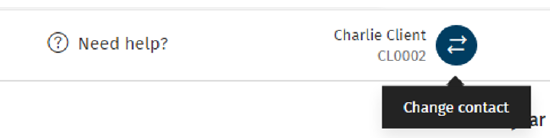
- Click on the Change Contact icon on the top right of iFirm Personal Tax and select a client to view their tax return.