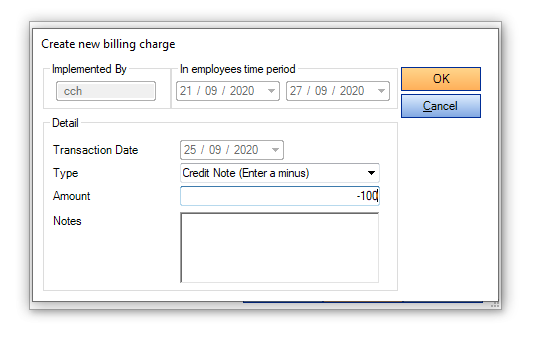
There are times when a client has paid an invoice and then requires a refund for payment, or does not pay the invoice at all, requiring a credit note to be raised to remove the amount from the debtor’s balance in the sales ledger. Credit notes can be used against an existing invoice or can have a new reference. You use the Miscellaneous Charge feature to raise a credit note for a client. You must enter the credit amount as a negative amount in the Create New Billing Charge window in order for the credit note to be processed correctly in debtors. TIP Credit notes can be used against an existing invoice or can have a new reference. A brief explanation as to why the credit note is being raised should be entered in the Notes field.

Enter a Credit Note

  1. Create a draft bill for the client or assignment you want to raise a credit note for.

  1. Open the Bill Amounts page from either the Billing Main page by clicking the Bill Amounts button, Bill Amounts button or by working through the Billing Wizard.

  2. Click the Create a Miscellaneous Charge button, Create Miscellaneous Charge button.

  3. In the Select Client Assignment window, from the list, select the assignment to record the credit note against.
    If you require an assignment that isn't listed click the Find Assignment button  to access the Find Assignment window. From here you can search for any client assignment in the system.

  4. Click OK in the Select Client Assignment window.

    clipboard_edf56ba4daa00d6e2ed2b1b5a788b4b24.png

  5. Select the required Type from the list.

  6. Enter the amount to be credited, make sure to enter this as a minus figure.

NOTE

Miscellaneous charge types must be set up by your system administrator in order to be available here. This is done via Maintenance > System > Code Types > Misc Charge. You should have a specific one for credit notes so they can be tracked in the system.
  1. Press OK

  2. Enter any internal notes to explain the reason for the credit in the Notes field and then click OK to close the window.

NOTE

The Implemented by field defaults to the employee creating the miscellaneous charge and the In Employee’s Time Period field defaults to the current time period selected for the employee.
The Transaction date field defaults to the current date.
  1. Click Close to exit from the Select Client Assignment window.

  2. This credit amount will now appear in the Bill Amounts window in the Write-On (Off) field in red, for example 200.00. The bill total will show a negative amount. If other WIP is being billed on the same invoice the bill total will decrease to reflect the credited amount.
    To view the credit amount in the Bill Amount page drill down through the client/assignment or group the items by 'Code Type' to show miscellaneous charges as their own item.

NOTE

All miscellaneous charges for a client will be displayed as one item in the billing Bill Paragraphs page, whether entered prior to billing or during. You will need to manually create separate line items in the Bill Paragraphs page if you want them to display individually in the client's bill. Ensure that the individual item amounts are amended to match the total miscellaneous charge amount, or you will not be able to post bill.

Related documents

CCH Practice Management 2026.2: Release Notes
Release Notes for CCH Practice Management 2026.2
CCH Practice Management 2026.3: Release Notes
Release Notes for CCH Practice Management 2026.3
CCH Practice Management: enhanced - billing training online (10133815)
This document outlines a 3-hour training course on CCH Practice Management, focusing on the chargeable work process for clients. Participants will learn how to authorize timesheets, expenses, and disbursements, access prebilling reports, and utilize basic billing functionalities. The course is aimed at users involved in the billing process and requires prior completion of CCH Central and CCH Practice Management essentials courses. It will be delivered via an interactive environment called CloudShare. Additional resources such as eLearning courses, videos, and webinars are provided for further learning.
CCH Practice Management: essentials training online (10133814)
This course is designed for staff involved in completing Timesheets, Expenses, and Disbursements within the CCH Practice Management system. It covers the creation and submission processes, as well as utilizing CCH homepages for efficiency. Prerequisites include completed CCH implementations and internal agreement. The training lasts for two hours and is conducted via the interactive CloudShare platform. Topics include job structure, month-end processes, and practical hands-on exercises. Resources such as eLearning, videos, and webinars are also available to enhance learning.
Software and database installation (10091331)
This document outlines the installation process for software and a pre-configured database following an order confirmation. It emphasizes the importance of ensuring that the IT environment meets necessary hardware and software specifications, as well as the role of a Consultant in reviewing infrastructure and advising on deployment options. Key areas covered include SQL revisions, resource allocation for installations, workstation deployment methods, and scheduling installation access rights. Users are encouraged to review a hardware system requirements guide prior to installation discussions.