Member Functionality Explained

In the Organisation overview click Members from the left panel. To invite new members to iFirm click here.

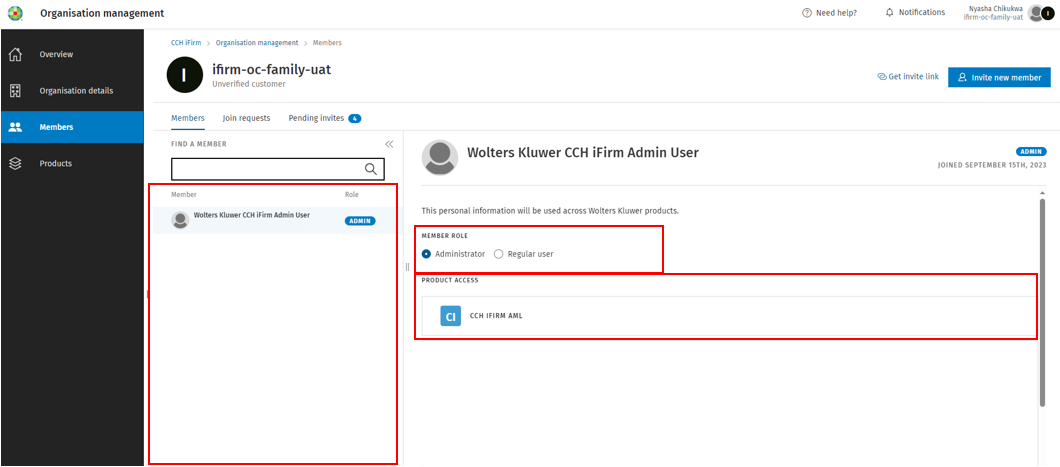
  • You will see a list of your organisation’s Wolters Kluwer Account members and their member role in the left column.
  • Selecting a member from the list will show their member role (Administrator or Regular user) as well as their product and application access in the central column.
  • The central column shows the products and applications each member has access to. Administrators have access to all applications and products.
iFirm_OrganisationManagement_ManageMembers1.png

Changing Member roles

NOTE: Members will receive an email notification if their role is changed.

If you wish a Regular member (not already an Admin) to have administrator rights, select the member and click on ‘Administrator’. You can use the same method to change an Administrator to a Regular member by clicking Regular user.

Once completed, click Save.

Remove Member

NOTE: Removing a member from iFirm will also revoke their access to CCH OneClick if your Organisation is licensed for this application.

To remove a Member's access to the organisation,  select the individual from the Members list.

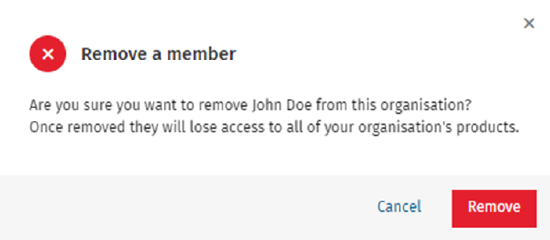
Click the 'Remove member' icon at the bottom right of the screen. Click Remove on the popupto confirm the removal.
iFirm_OrganisationManagement_ManageMembers2.png

Join Requests

Join requests are created and sent to an Administrator as an email when the 'Get invite link' process is used to invite multiple members. When a member accepts the link, creates a Wolters Kluwer Account and verifies their email address, a Join request is created for you to review.

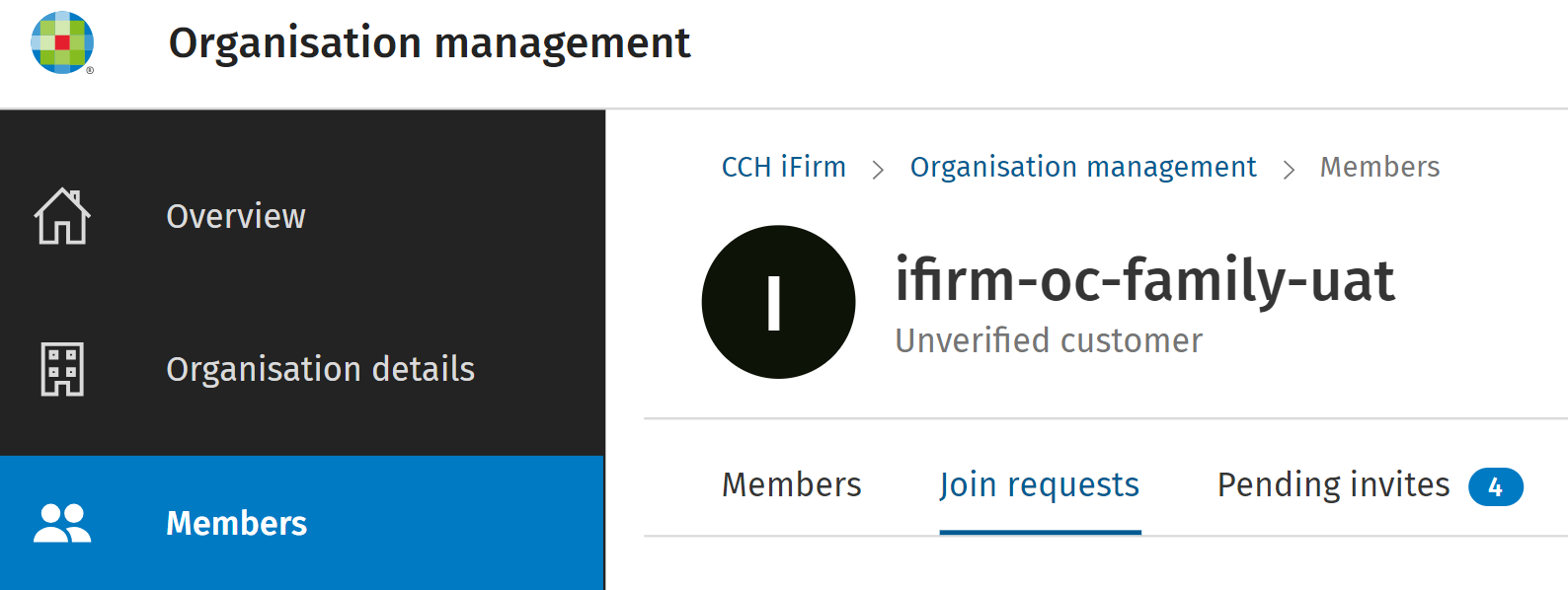
To view current Join requests, click the 'Join requests' tab within the Members area.
iFirm_OrganisationManagement_ManageMembers3.png

Approving Join Requests

Warning! Always check the Member name, and ensure you recognise the email address of the Join request, before accepting.

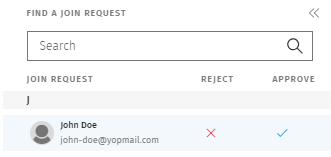
To approve a Join request, click on the blue tick next to the Members name.
iFirm_OrganisationManagement_ManageMembers4.png
  • The Member will recieve an email confirmation that their request has been approved, with a link to allow them to log into your Organisation.
  • Once you approve a Join request the member will be displayed in the Members tab, and will have Regular user access permissions.
  • Click on the member to change the permission level and grant access to the appropriate applications.

Reject Join Requests

To reject a Join request, click the red x next to the Members name.

  • A confirmation dialogue is displayed, click Reject  to proceed.
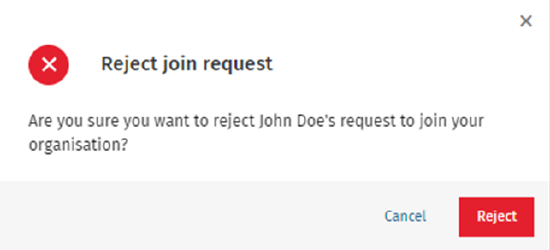
iFirm_OrganisationManagement_ManageMembers5.png
  • The Join request is deleted from your Organisation.

Pending Invites

Pending invites are created when you use the 'Invite member' process to send an invitation to an individual member. An invitation is pending until the individual accepts the request and creates a Wolters Kluwer Account. 

To view current Pending invites, go into the Members area and click on the 'Pending invites' tab.
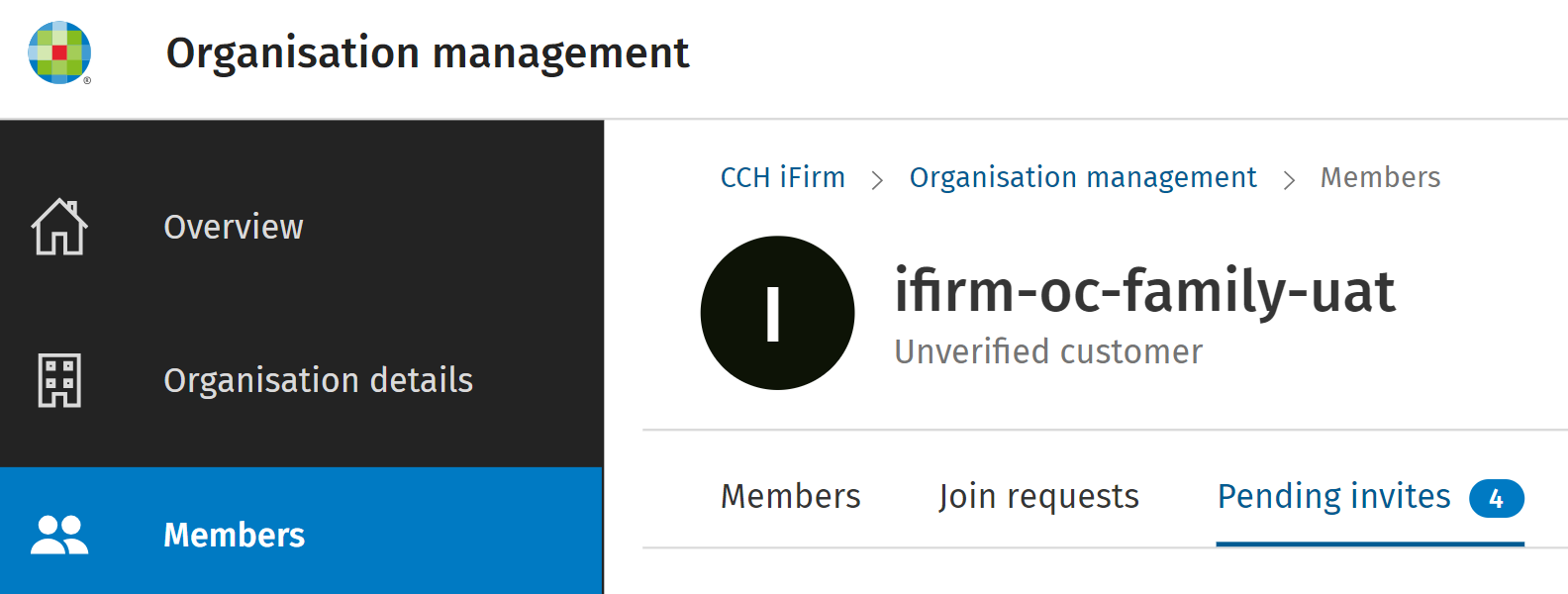
iFirm_OrganisationManagement_ManageMembers6.png

Resend Invitation

To resend the invitation to the individual, click 'Resend' at the bottom of the screen.

The Resend invitation dialogue is displayed, click Yes to proceed.

Revoke Invitation

To revoke the invitation sent to the individual, click 'Revoke' at the bottom of the screen. The Revoke invitation dialogue is displayed, click Yes to proceed.

Related documents

CCH iFirm licenses before 1st September 2025
This document provides guidance on managing CCH iFirm accounts post-launch in September 2025. Customers with contracts activated after January 31, 2025, received zero-value invoices to establish opening balances, allowing access to historical usage reports via Excel. Contracts active before January 31, 2025, will not show product usage until renewal. Additionally, any expired contracts prior to September 1, 2025, lack transferred usage history, and related invoices will generate error messages when attempted to be accessed. The document highlights features of the new accounts interface and the handling of additional usage charges.
Organisation Management Overview
This document provides an overview for Wolters Kluwer Account Administrators on using the CCH iFirm Organisation Management tool. It outlines how to access the tool, manage members, and edit organisation details, such as the organisation name, VAT number, and company registration number. Admin-level users can make changes to the organisation's information, including inviting new members and managing application access. Additional help resources are linked for further assistance.
Logging into CCH iFirm: Admin & User Access Guide
This document provides guidance on logging into CCH iFirm, specifically targeting Admin users and existing/new users of the CCH iFirm cloud product. It includes links to the Help Guide for Admins and instructions for managing user access. If an organization has not begun using CCH iFirm, existing administrators should use the Wolters Kluwer Account self-service portal. Additionally, it highlights the requirement for email matching between CCH iFirm and CCH Central for access. For further assistance, users are advised to contact their organization's Wolters Kluwer Account Administrator.
What is CCH iFirm?
This document provides an overview of CCH iFirm, a cloud-based platform offering various products such as AML, accounts production, and personal tax services. It highlights the functionalities of Organisation Management for administrators, enabling them to control member access and manage settings. Users are advised to utilize the new Organisation Management app for member invitations instead of the previous support tool. The document also includes instructions for accessing the Organisation Management area and emphasizes the roles of Wolters Kluwer Account Administrators in managing memberships and product access.
Member Permission Levels
This document provides a summary of the different member permission levels in CCH iFirm, distinguishing between Admin and Regular users. Admin users have comprehensive capabilities, such as managing organization settings, viewing/editing all clients, adjusting member permissions, and inviting new members. In contrast, Regular users have limited access, able only to view/edit clients they specifically have permission for. The document outlines key functionalities permitted to each user type, highlighting the more extensive privileges granted to Admin users.