Overview screen
The Overview screen gives a summary of the Business details together with a section for Validations and a Financial overview.
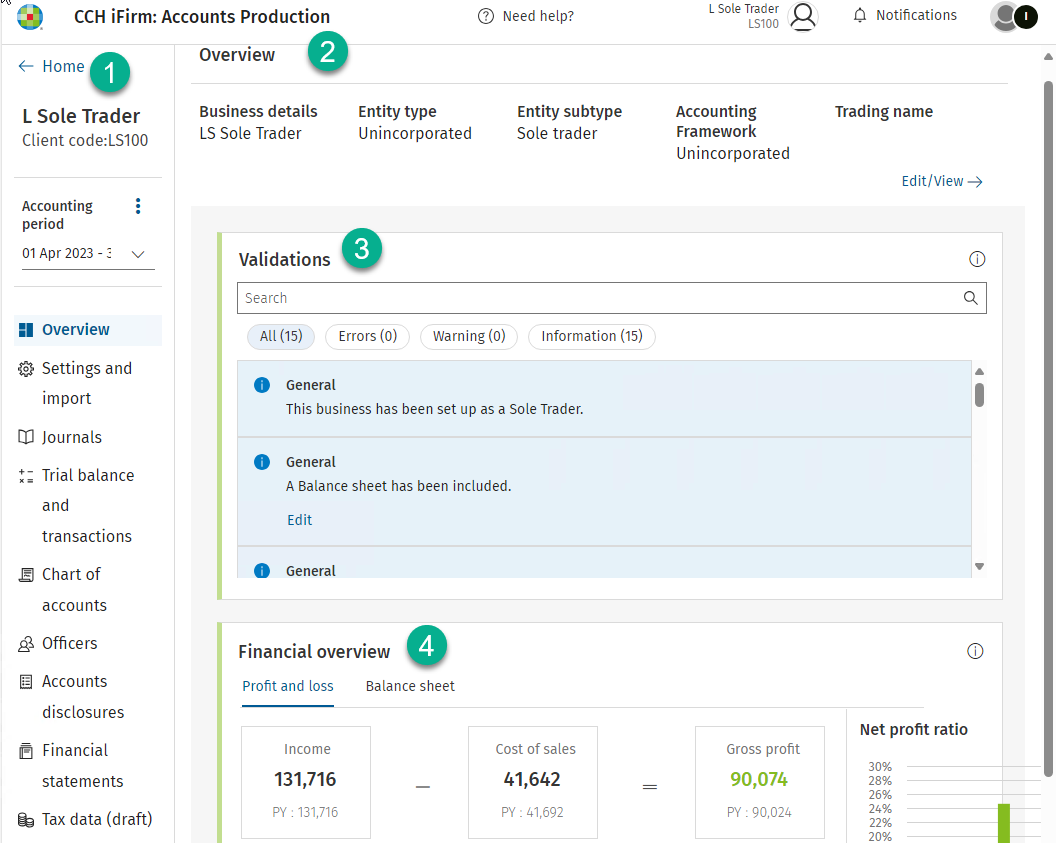
The Overview screen is the first screen you will see when accessing CCH iFirm Accounts Production and is divided into four areas:
- The side panel
- Overview
- Validations
- Financial overview
The side panel (1)
The side panel appears on each screen allowing easy navigation between screens. A single mouse click will take you to your chosen area.
Client name, code and accounting period
At the top of the side panel is the client's name and code and the accounting period.
Where you see three vertical dots beside Accounting period, click on these dots to reveal options available, being to be able to create a prior period, perform the year-end or to delete the accounting period.

Create a prior period
If you wish to create a prior period for your client, click on this option, a success message will briefly be displayed.
If a prior period already exists, this option will be greyed out.
Year-end
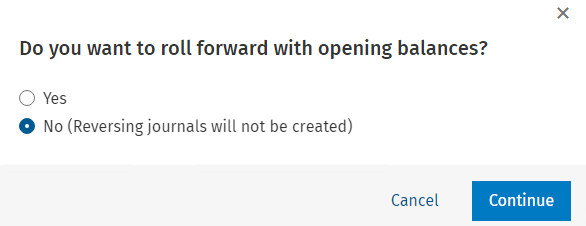
To run the year-end click on this option, the following message will be displayed, make your choice to roll forward opening balances or not, the default is No. Then click Continue to roll forward to the next accounting period, a success message will briefly be displayed or Cancel if you do not wish to proceed.
Delete Accounting period
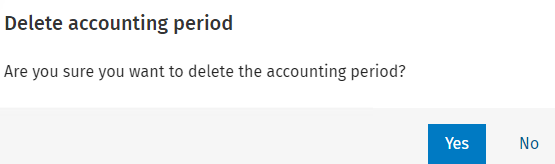
If you have created an accounting period in error, click on this option to delete, you will be asked to confirm, a success message will briefly be displayed, or click on No if you do not wish to proceed.
Overview of business details (2)
This screen gives a summary of the business including validations and a financial overview.
The top horizontal area displays the Business details, Entity type, Entity subtype, Accounting Framework.
Clicking on the Edit/View -> hyperlink will take you to the Settings and import screen, click on the hyperlink to the right to navigate to this screen:
Settings and import
Validations (3)
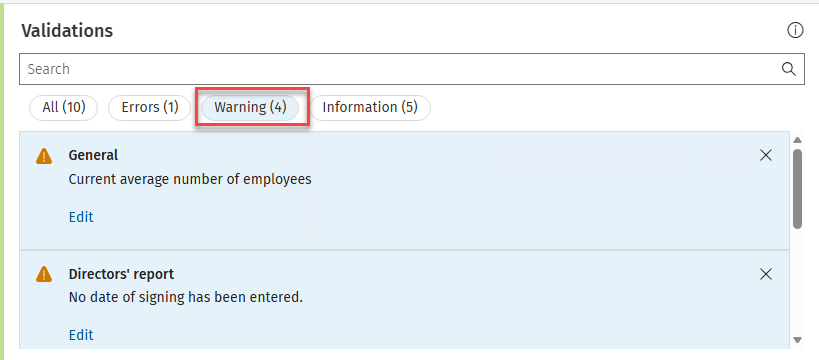
The Validations area displays errors, warnings and information, there is a search box and you can filter on the buttons: All, Errors, Warning, Information.
To view/correct, click on the hyperlink under the message, e.g. Edit, the hyperlink wording will change depending on the error message being displayed. Once you click on the hyperlink you will be prompted to answer a question or enter information. The example below shows there are 4 warnings, the first being to enter the number of employees.
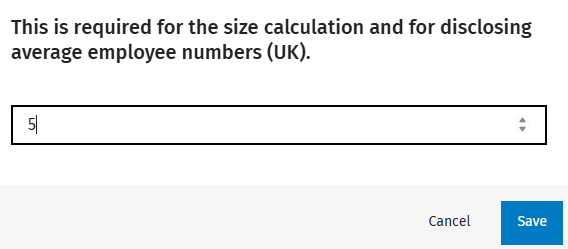
Clicking on Edit opens the box below where you can enter the number of employees, when completed click Save and the warning message will disappear.
Financial Overview (4)
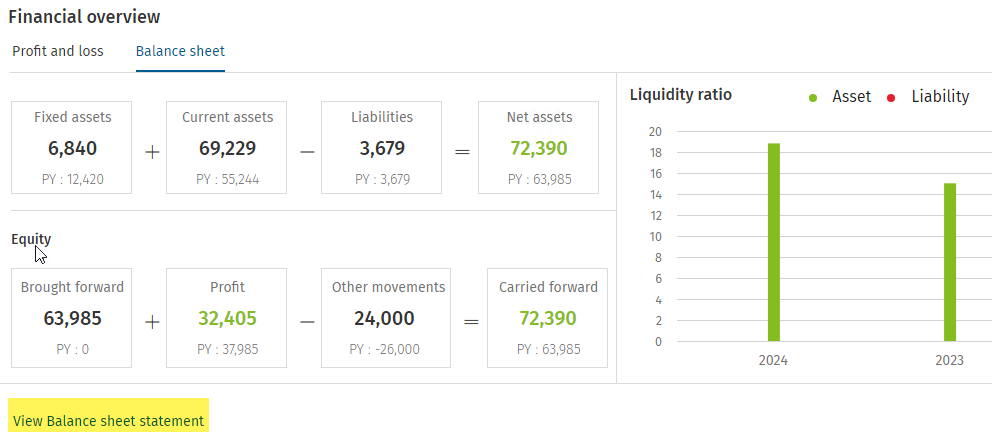
This area may be filtered by Profit and loss or Balance sheet and displays key figures from those primary statements together with either the net profit ratio (for the P&L overview) or the Liquidity ratio (for the Balance sheet overview).
Depending on the view being displayed you are able to view the Profit and loss statement or the Balance sheet statement by clicking on the hyperlink.