
Trial balance
The Trial Balance report lists out all the nominal codes which have a balance on them at the chosen report date.
There are three ways in which a Trial Balance can be obtained:
- Reports - Nominal Ledgers - Trial Balance…
- From the Nominal Ledger tab of the Client menu, click Trial Balance and then Goto.
- From the shortcut icon on the Nominal Ledger toolbar.
When you have selected the Trial Balance, the following window appears:
Select the relevant date and options from the Main options and Extra columns tabs in the Client Trial Balance box, click on Report to view and/or print.
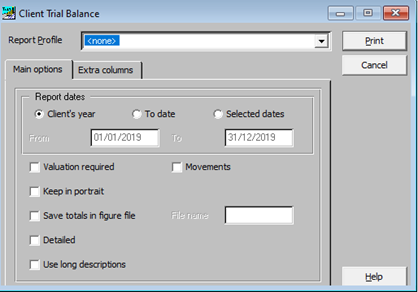
Main Options
|
Report dates: |
Controls which transactions are to be included in the report. |
|
Valuation required: |
If correctly set up, the trial balance has the ability to calculate and show the market value of the client’s investments at the report date. |
|
Movements: |
If required, the report can be set to show the total movement on each account within the period rather than the balance at the report date. |
|
Keep in portrait: |
Depending on the number of extra columns selected, the report prints in landscape. This can be overridden by ticking this option. |
|
Save totals in figure file: |
No longer used. |
|
Detailed: |
If sub-accounts have been used, ticking this option displays the sub-accounts. |
|
Use long descriptions: |
This option displays the long descriptions of the nominal accounts instead of the short descriptions. |
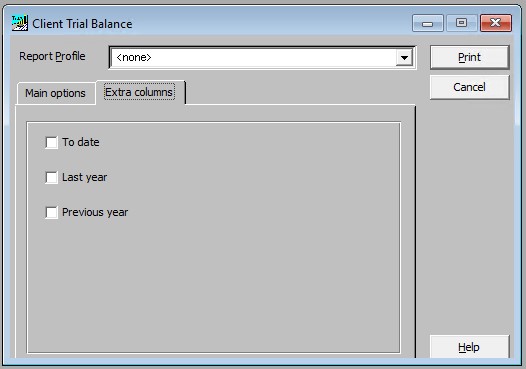
Extra Columns
|
To date: |
This option generates an extra column showing the balances to date, irrespective of the report date. |
|
Last year: |
This option generates an extra column showing the balances on the accounts for last year. |
|
Previous year: |
This option generates an extra column showing the balances on the accounts for the previous year. |