
Asset Details
Accessing Asset Details
The Asset screen shows details of the asset. To access Asset Details either select New to create a new asset or click on the hyperlink to an existing asset.
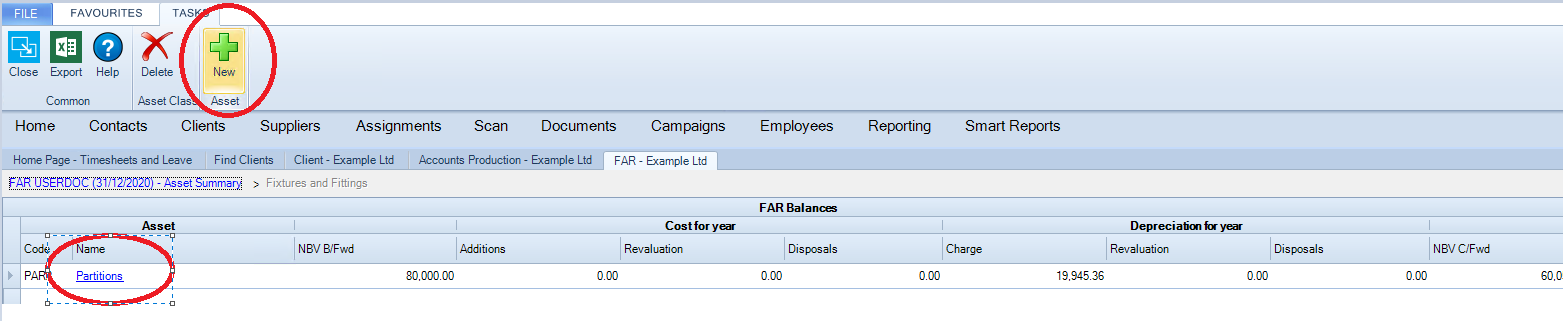
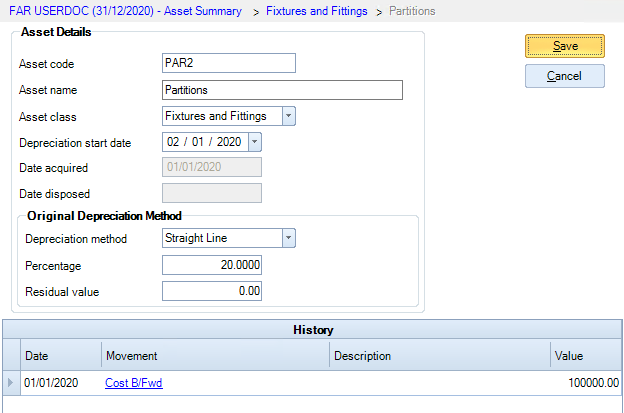
The Asset screen shows details of the asset.
Asset Details ribbon options
Export Export the Asset to Excel, from where it can be printed if required.
Delete Asset An Asset can only be deleted if it has no movements in any period.
New Asset Movement Creates a new asset movement.
Asset screen details
The Asset screen details apply to all years, not just the Accounting Period that is currently selected in CCH Accounts Production.
Changes cannot be made if they affect an earlier period that has been finalised. If they affect an earlier period that has not been finalized, then you are asked to confirm changes when saving.
Asset Code is generated automatically if this is selected on the Periods screen but can be overridden on this screen.
Asset Name show s the name of the asset and Asset class shows the Asset Class the asset belongs to. This can be changed, but not if it affects a finalized period.
Depreciation Start Date is the date the depreciation calculation starts from. It is usually left blank. If so, the depreciation calculation starts from the date of the first addition or, if the option is set to Calculate a Full Period's Depreciation in the Period of Acquisition on the Periods screen, it starts from the year start date. If depreciation should start from a different date then the Depreciation Start Date can be specified. The Depreciation Start Date cannot be before the date of the first addition. It can be used when a piece of plant and machinery is being bought and assembled in stages and is only brought into use at the end of this process.
Date acquired and Date disposed are calculated from the Asset Movements for Cost B/Fwd, Additions and Disposals.
The Original Depreciation Method is used unless there is an Asset Movement for a Change of Method, in which case the new method is used from the date of the Change of Method. The Depreciation Method cannot be changed if it would affect a finalized period. The Depreciation Method and Percentage default to those on the Asset Class but can be overridden. The Residual Value is the value down to which you wish to depreciate the asset. It defaults to 0 if the Depreciation Method is Straight Line, or 1 if the Depreciation Method is Reducing Balance.
History shows all Asset Movements entered on the asset, whether in the current period or in a past or future period. Click on the Movement Type to drill into the Asset Movement.
If the Depreciation Method is set to Reducing Balance the Residual Value cannot be less than £1.
Ribbon
Export Export the Asset to Excel, from where it can be printed if required.
Delete Asset An Asset can only be deleted if it has no movements in any period.
New Asset Movement Creates a new asset movement.