
How To
Applying the changes to clients
CCH Trust Accounts
After the Practice Masters have been created, they are not automatically applied to existing clients, or even to newly converted clients. The changes need to be applied to each client individually:
- In Central, select Clients and find the client that should be upgraded.
- Select the Accounts Production tab.
- Double-click on the Accounting Period to go into it.
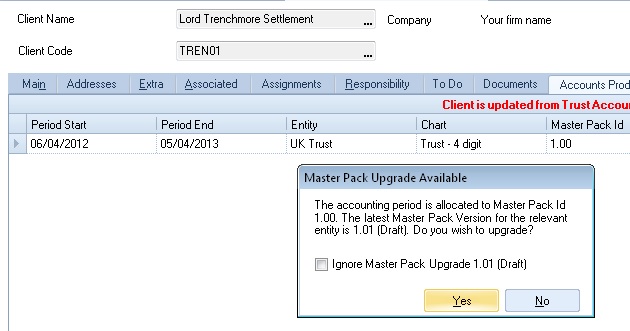
- The message shown below appears. In this case the upgrade is to a “Draft” masterpack, i.e. one that is unpublished.
- Click Yes to upgrade this client to the new masterpack version.
- Once the client has been upgraded, the new masterpack version appears in the Master Pack Id column on the Accounts Production tab. The user is not asked whether they wish to upgrade again.
Note
If the option to “Ignore Master Pack Upgrade” is ticked then the user is no longer asked whether they wish to upgrade to this version. If the user subsequently changes their mind then the option Master Pack Version on the Home screen can be used to perform the upgrade instead.
Related documents
Linking to clients in CCH Central
This document provides instructions on how to link and unlink clients from CCH Central in the CCH Trust Accounts system. To link a client, the user must select the client, click "Edit," then "Link," and choose the appropriate client from Central. Once linked, certain fields become non-editable in Trust Accounts. To unlink a client, the user clicks the "Unlink" button, which restores editability but deletes any accounting periods in Central. Key fields updated from Central include client name, address, and contact details.
Database Parameters
Various features in Trust Accounts are optional. To set up many of these, from the Activities menu select System Management, and then Database Parameters.
Data Parameters
Various features in Trust Accounts are optional. To set up many of these, from the Activities menu select System Management, and then Database Parameters.
Database Parameters
Database Parameters
Passwords
Passwords