
How To
Beneficiary TB Screen
CCH Trust Accounts
Options for a Beneficiary TB screen
The options for a Beneficiary TB are shown below.
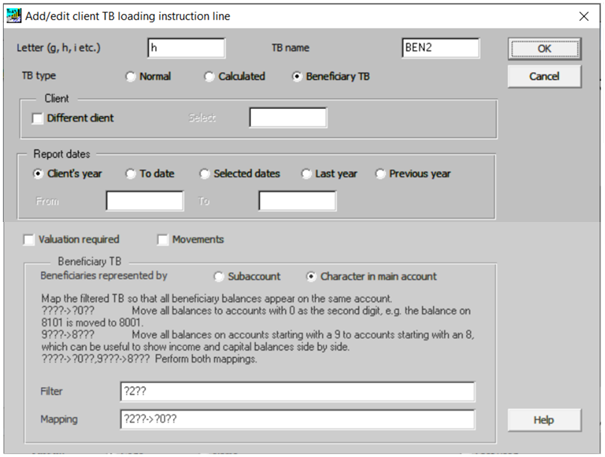
This screen sets up letter h to hold the second beneficiary’s TB. The initial fields are the same as those for a Normal TB. There are three additional fields:
- Beneficiaries represented by This can be set to Subaccount or Character in main account as explained in Beneficiary TB Concepts. Underneath the Beneficiaries represented by field is some Help text that varies according to which field is selected.
- Filter This filters the main trial balance to select just the nominals that relate to the beneficiary. If beneficiaries are represented by subaccounts it is usually a formula like ????/02 to pick up the /02 subaccounts, assuming the user is using 4 digit main accounts. If beneficiaries are represented by a character in the main account, it is usually a formula like ?3?? to pick up all accounts with a 3 as the second character, again assuming the user is using 4 digit main accounts.
- Mapping This applies only when beneficiaries are represented by a Character in main account. The mapping must contain a “->” in the middle to represent an arrow. ?2??->?0?? means that accounts with a 2 as the second digit should be mapped to change the second digit to a 0, assuming the user is using 4 digit main accounts.
Note:
- It is possible that two nominals are mapped to the same account. In this case their balances are added together on the mapped account.
- It is possible to define a Filter that selects accounts for more than one beneficiary, e.g. ????/02+????/03.
Note: it is possible to define a Mapping to perform multiple mappings. For instance,
???->?0??,9???->8???
means that all accounts are mapped so that their second digit is 0. In addition, any accounts starting with a 9 are mapped so that they start with an 8. The latter mapping is useful if capital accounts start with a 9, income accounts start with an 8 and the user wishes to show the capital accounts next to the income accounts in a columnar layout.
Related documents
Linking to clients in CCH Central
This document provides instructions on how to link and unlink clients from CCH Central in the CCH Trust Accounts system. To link a client, the user must select the client, click "Edit," then "Link," and choose the appropriate client from Central. Once linked, certain fields become non-editable in Trust Accounts. To unlink a client, the user clicks the "Unlink" button, which restores editability but deletes any accounting periods in Central. Key fields updated from Central include client name, address, and contact details.
Database Parameters
Various features in Trust Accounts are optional. To set up many of these, from the Activities menu select System Management, and then Database Parameters.
Data Parameters
Various features in Trust Accounts are optional. To set up many of these, from the Activities menu select System Management, and then Database Parameters.
Database Parameters
Database Parameters
Passwords
Passwords