
Import from VAP
Assets and their costs can be imported from the old CCH VAP Fixed Asset Register. The process is very similar to the Import from Excel. It follows these steps:
- The VAP fixed asset data is exported from the VAP FAR into a CSV file.
- In Central, you go into a client’s Fixed Asset Register and select Import from VAP. The process works the same way as importing from Excel except that the system ignores assets that have been sold in VAP and the VAP Asset Classes need to be mapped to the FAR Asset Classes.
These steps are discussed in the following two sections.
Note that the Import from VAP imports all assets for a client in one operation. If any assets already exist on the client in Central, they are deleted first. Whereas the Excel Import can be performed incrementally with further imports adding more assets.
Copying Data from the VAP FAR into a CSV File
The first step in converting VAP Fixed Asset Register data to the new FAR is to copy the VAP data into a CSV file which is created via Excel. To do this, proceed as follows:
- Go into the client in VAP.
- Select Ledgers > Fixed Asset Register.
- A list of the assets appears. Ensure that depreciation has been calculated for the year.
- Select Fixed Assets > Drag Mode.
- A message appears, “This will allow you to drag row(s) into a Microsoft Excel Spreadsheet.” Click OK.
- Open a new Excel spreadsheet.
- On the screen, position VAP and Excel so that both are visible at once. This may involve using the Restore icon in the top right of the VAP and Excel windows and resizing both applications to fit next to each other.
- In VAP FAR, click the first asset. Then press Shift-Down arrow to extend the list of selected assets down to the last one. All the assets should be highlighted.
- Drag the highlighted assets to the Excel spreadsheet. All the assets should now appear in the spreadsheet. The screen appears as follows:
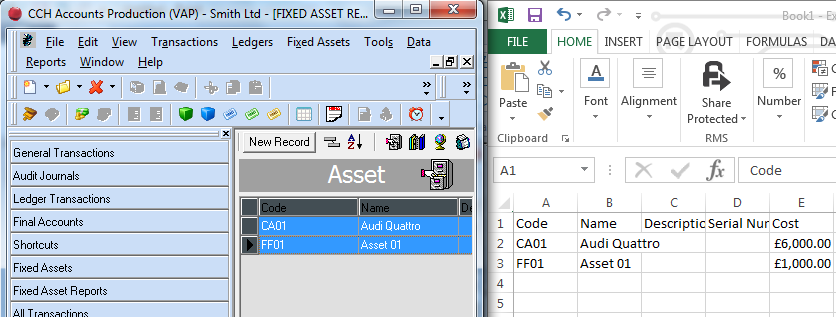
- If the asset codes are numeric, Excel will reformat them without the leading zeroes. In Excel the leading zeroes can be added back as follows:
- Highlight the first column by clicking the “A” in the column heading.
- Right click > Format cells. Select the Number tab. Then Custom.
- Enter Type as 0000 where the number of zeroes is the number of digits required in the asset code.
- Press Return and the column should now appear correctly.
- Select File > Save As and choose the location to save the file.
- When requested for the file name, enter it and select the Save as type as “CSV (Comma delimited) (*.csv)”.
- Click Save. The system warns that some features may be lost and asks whether you want to keep using that format. Say Yes to save the file.
Note: CCH fixed Asset Register learning resources
Importing the VAP CSV file into the Fixed Asset Register
Go into Accounts Production in the financial year after the VAP financial year. This is because the balances imported from VAP will form the Costs B/Fwd for the next year in the FAR.
If there are already any assets present on the client, the warning is given “Assets already exist for this client.
To import assets from VAP these must all be deleted. Do you wish to delete all assets on this client?” If you answer Yes all assets on the client are deleted. It is only intended to be used if you have imported a lot of assets into the wrong accounting period. Using this option makes it possible to delete the previously imported assets and import them into the correct period.
The screen for Import from VAP appears. It works in the same way as the Import from Excel screen, with the following exceptions:
- The option Has Headers is ticked and 1 header line is selected, as this is the format of the VAP CSV file.
- The VAP data includes a column for Disposal Date. If an asset has been sold it is marked as “Asset sold” in the Error column. This means that the asset will not be imported, but it is not strictly an error as you can still import the VAP assets that have not been sold.
- On clicking Import, you are requested to enter the FAR Asset Class code corresponding to each VAP Asset Class.
- The VAP Asset Classes are called Control Groups and the Control Group codes are called Group Detail Codes. In VAP FAR you can see them by clicking the Control Groups icon.
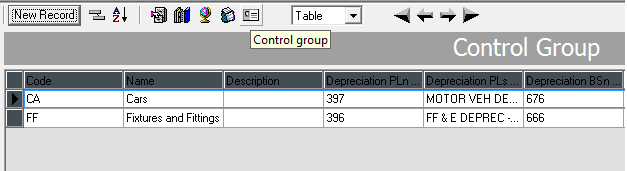
- On clicking Import, you enter the FAR Asset Class for each Group Detail Code.
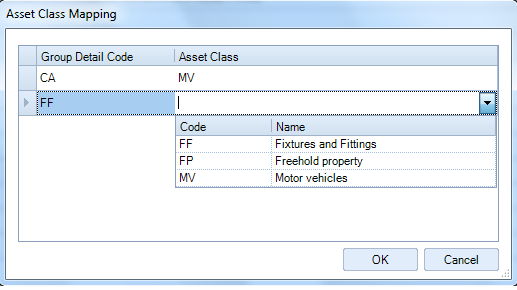
You may need to consult the VAP FAR to see what each Group Detail Code represents.
The assets are then imported with a Cost B/Fwd entry dated on the first day of the financial year selected at step 1.
After importing the data, you are returned to the Asset Summary screen.